Updated: May 24, 2024
Recent Calls, commonly known as "call logs," displays call activity and call details from every call type. Call logs are kept for ninety days then removed and archived after that period has elapsed. Calls that have a System Disposition = No Answer are removed within three weeks.
Go to: Reports > Recent Calls
Recent Calls Table
After a call has ended, a call log is created. The call log displays essential information that pertains to the call. While there is substantial information on the table, the following explains how to parse the data and gain the insight needed for your business.
Without applying any filters, the table simply displays all calls that have been completed. However, to dig into the data, you can query data by applying filters.

Filter Results
Click Filter Results (upper right hand corner) to view search query options.

"Filter Results" allows for you to narrow down a query. The following explains the search fields.
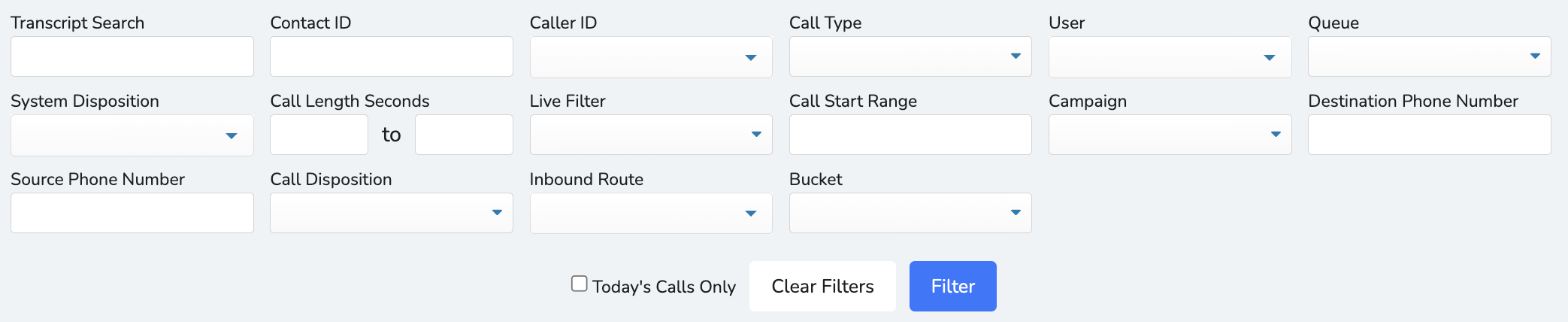
Transcript Search. When calls are recorded, a transcript is created. This feature searches transcripts from recorded calls. To search for a transcript, enter a word that is tied to the recorded conversation. If there are multiple results, it may be helpful to narrow down to more specific keywords.
Contact ID. Searches a specific contact ID.
Caller ID. Searches contacts that have received calls from a specific caller ID.
Call Type. This selects the type of call made:
- Outbound - calls made outbound manually or by a preview campaign.
- Inbound - calls made inbound.
- Internal - calls made to a destination by dialing an extension such as an agent, queue, external number, etc.
- Async Outbound - calls made through a campaign.
- External Forward - calls transferred to an outside number.
- Record by Phone - calls made into the system in order to record an audio recording.
- Call Back Queue - client-requested call backs.
- Web Call Back - phone numbers posted to an API/WebCallRequest and routed to a specific destination. For example, a click-to-call function on a website or mobile app would fall under this call type.
User. This selects a specific user.
Queue. This selects a specific queue.
System Disposition. This selects a specific disposition. System dispositions are dispositions made by the system, not by an agent. For example: "No Answer," "Busy," or "Failed."
Call Length Seconds. This searches a custom range of seconds billed.
Live Filter. This selects a specific live filter.
Call Start Range. This searches a custom date/time range.
Campaign. This selects a specific campaign.
Destination Phone Number. This searches calls made to a specific phone number or extension.
Source Phone Number. This searches calls made from a specific source phone number (mainly used with inbound calls).
Call Disposition. This selects a call dispositions, which is used to determine the outcome a call. Call dispositions are selected by the agent. For example: "Sale Made," "Follow Up," or "Email Sent."
Inbound Route. This searches contacts that made inbound calls to a specific Call Tools DID.
Bucket. This selects the bucket in which contacts were dialed from.
Today's Calls Only. Enabling this feature displays logs only from today. If left unchecked, calls logs will include previous dates and times.
Controls Column: View, Play, Download, and File URL
On the Recent Calls page call log table, under the "Controls" column (far right side), there are call log links that pertain to the call:
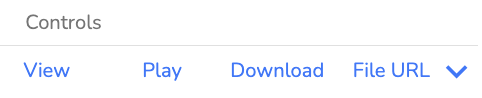
- View - Displays a pop-up window with the call's details.
- Play - If the call is recorded, press Play to listen to the recording after the call has finished.
- Download - If there is a call recording, click Download to receive a copy of the recorded call.
- File URL - If there is a call recording, click File URL to copy the web address of the recorded call.
Edit Table
Click Edit Table to open the column edit window.

The Edit Table feature provides the ability to organize the call log table by rearranging, adding, or removing columns.
Keep in mind, this is user-specific. If one user edits the table, it doesn't affect how other users see the table. Also, if the user is both an agent and a manger, it affects both dashboards. These edits can be customized from the manager or agent dashboard as well.
Conclusion
The Recent Calls report is used every day by managers. Not only does it inform the manager of call details, it also provides an overview of daily activity. The report's granularity offers the flexibility to collect the necessary activity that helps managers analyze their operations.

Comments
0 comments
Article is closed for comments.